IP Address Settings - PC
Enter the IP editing interface
-
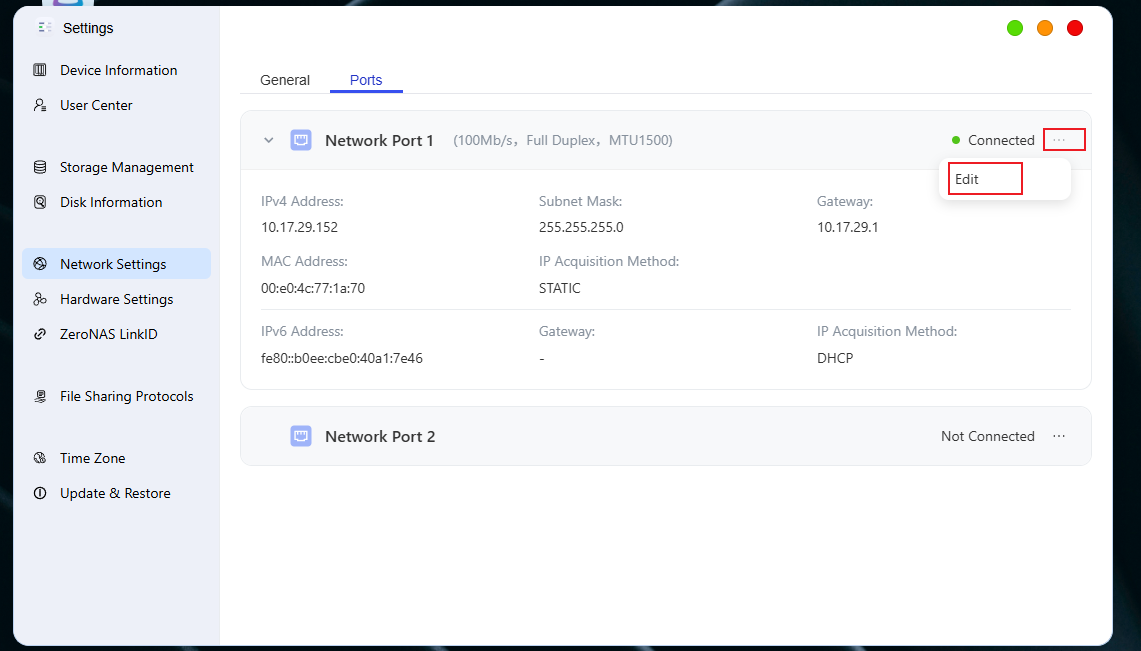
Open Network Settings: Click [System Settings -> Network Settings]
-
Select the network port: Next to the **General **tab, select the [Network Port] tab.
-
Edit Network Port: Locate the network port to be configured, click the [". .."] icon on its right, and select [Edit]
Configure IP Address
In the editing interface, set IPv4 and IPv6 respectively according to actual requirements
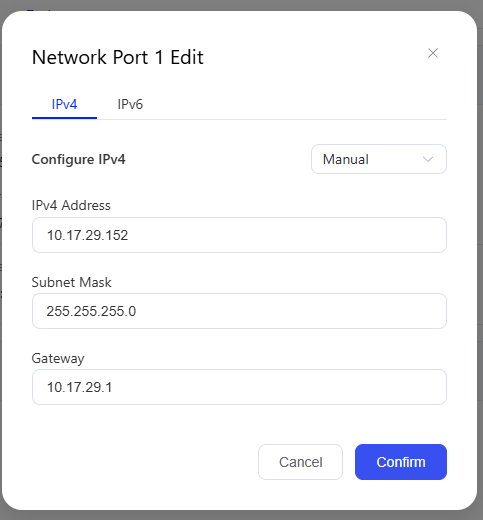
- IPv4 Configuration
-
Automatic (DHCP): The system automatically obtains an IP address
-
Manual Setup: If you need to use the IP address specified by your network service provider, please manually enter the relevant information, including the IP address, subnet mask, gateway and other details.
- IPv6 Configuration
-
Automatic (DHCP): The system automatically obtains an IP address
-
Manual Setup: After selecting this option, you need to manually enter information such as the IPv6 address, prefix length, and gateway.
-
Disable: When selected, the system will disable IPv6 support for this network interface.
Precautions
-
DHCP Dependency: If you select automatic acquisition, please ensure that there is an available DHCP server (such as a router) in your network environment.
-
Address Refresh: There may be a slight delay in DHCP allocation. If an address is not obtained immediately, you can try to refresh it manually.
-
Execution time: Some network configuration commands may take a long time to execute. Please wait patiently.